
| 일 | 월 | 화 | 수 | 목 | 금 | 토 |
|---|---|---|---|---|---|---|
| 1 | 2 | 3 | 4 | 5 | 6 | |
| 7 | 8 | 9 | 10 | 11 | 12 | 13 |
| 14 | 15 | 16 | 17 | 18 | 19 | 20 |
| 21 | 22 | 23 | 24 | 25 | 26 | 27 |
| 28 | 29 | 30 | 31 |
- login_btn
- API
- mac permission denied
- mac os 권한
- import
- HTTP
- 앱
- flutter
- 컴공
- 앱개발
- chmod
- App
- import안됨
- 맥북 권한
- kotlin-android-extensions
- android studio
- dart
- Kotlin
- 코틀린
- chown -R
- chown
- Today
- Total
Milan Dev
kotlin: 레이아웃(layout) 본문
오늘 알아볼건 레이아웃이다.
앞선 내용중에 activity_main.xml파일을 열면 우린 먼저 ConstraintLayout이 설정되어 있는것을 볼 수 있다. 또 그것을 다른 레이아웃으로 변경하여 사용하였다. 레이아웃에 대해 알아보자!
레이아웃에는 대표적으로 세가지 종류의 레이아웃이 있다.
Linear, Relative, Constraint
물론 이 3가지 말고도 수많은 종류의 레이아웃이 있지만 보통 안드로이드 스튜디오에서 작업을 할때 가장 많이 사용하는 레이아웃이 바로 이 3가지이다. 각 레이아웃을 더 자세히 알아보자
LinearLayout (선형)
리니어는 '선으로 된' 이라는 뜻을 가지고 있다. 선 처럼 한 방향으로 쭉 나열할때 사용하는 레이아웃이라고 이해하면 좋을 것 같다. 그래서 리니어레이아웃은 방향(Orientation)이 중요하다.
RelativeLayout (관계형)
렐러티브는 관계, 상대를 뜻하는데, 음... 설명하기 쉽게 예를들면 화면 중간에 '중앙' 이라는 녀석의 상하좌우에 각각,
동, 서, 남, 북 이라는 4개의 물체를 놓는다고 가정을 해보자. 그러면
'동' 은 '중앙' 으로부터 오른쪽에 있다.
'서' 는 '중앙' 으로부터 왼쪽에 있다.
'남' 은 '중앙' 으로부터 아래쪽에 있다.
'북' 은 '중앙' 으로부터 위쪽에 있다.
이렇게 기준으로 부터 어디에 무엇이 있다고 관계를 정의할 수 있다.
이런식으로 뷰 사이의 관계를 정의하여 만드는 레이아웃이 렐러티브레이아웃이다.
ConstraintLayout (제약형)
컨스트레인트는 강제라는 뜻을 가지고 있는데, 이것도 쉽게 예를 들어보자. A라는 물체가 있고 B, C라는 물체가 있다. A는 동서남북으로 연결되어 화면 중앙에 위치하고 있고 A의 위쪽에 B를 5cm 간격으로 놓고 C를 A의 아래쪽에 10cm 간격으로놓고 싶다고 설정을 하였다. 이렇듯 B를 A로 부터 얼마만큼, C를 A로 부터 얼마만큼 조건을 걸어 강제하여 위치를 고정하는 것이 컨스트레인트레이아웃이다. 복잡한 뷰를 만드는데 장점이 있고 렐러티브, 리니어 레이아웃과 유사한 점이 있다.
그런데 컨스트레인트 레이아웃은 위치를 강제하는 만큼 멀티 디바이스에서 정상작동하는지 알기가 힘들고 정상적으로 작동하지 않는다면 보수가 힘들어 현업에 아주 많이 사용되지는 않는다고 한다.(좀 오래된 정보라 정확한건 아닙니다..)
각 레이아웃을 사용해서 예시를 만들어보자
리니어레이아웃 xml
<?xml version="1.0" encoding="utf-8"?>
<LinearLayout
    xmlns:android="http://schemas.android.com/apk/res/android"
    xmlns:app="http://schemas.android.com/apk/res-auto"
    xmlns:tools="http://schemas.android.com/tools"
    android:layout_width="match_parent"
    android:layout_height="match_parent"
    tools:context=".MainActivity"
    android:orientation="horizontal"
    android:weightSum="3"
    android:gravity="center"
    >

    <View
        android:layout_weight="1"
        android:layout_width="50dp"
        android:layout_height="50dp"
        android:background="#F44336"

        />
    <View
        android:layout_weight="1"
        android:layout_width="50dp"
        android:layout_height="50dp"
        android:background="#FFEB3B"

        />
    <View
        android:layout_weight="1"
        android:layout_width="50dp"
        android:layout_height="50dp"
        android:background="#2196F3"

        />

</LinearLayout>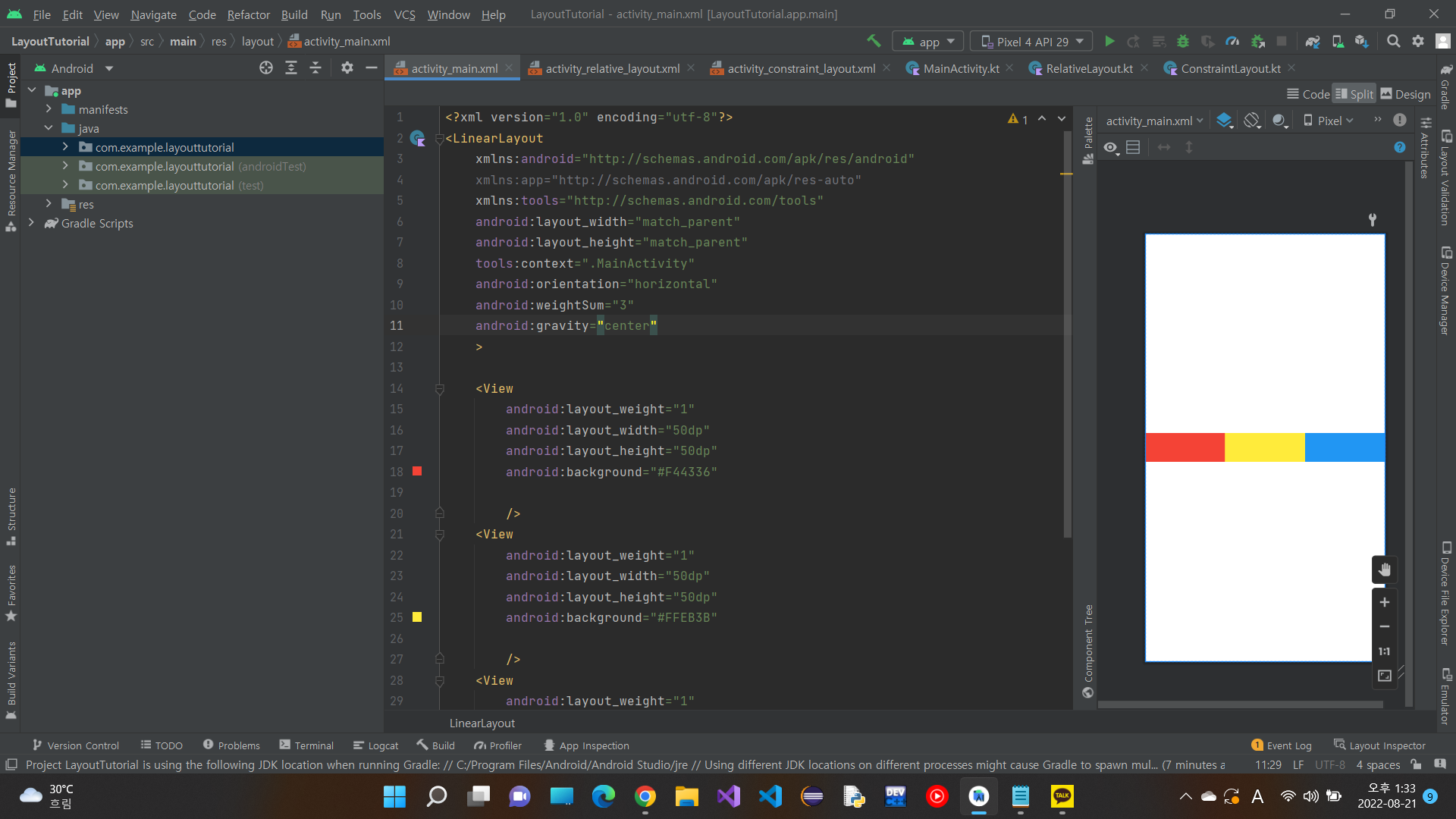
빨, 노, 파 3가지 블럭을 수평으로 이어주는 코드를 만들었는데
orientation은 horizontal(방향은 수평)
weightSum은 3(총 가중치는 3)
gravity는 center(가운데 위치) 로 틀을 잡았다.
특징중 하나는 가중치 설정인데 위 코드처럼 총 가중치를 3으로 정하고 만들어 놓은 3개의 뷰의 가중치를 각각 1씩 준다면 보이는 것 처럼 3개의 뷰가 각각 1 : 1 : 1의 비율을 가진다. 뷰의 비율을 정하는 기능이다.
렐러티브레이아웃 xml
<?xml version="1.0" encoding="utf-8"?>
<RelativeLayout
    xmlns:android="http://schemas.android.com/apk/res/android"
    xmlns:app="http://schemas.android.com/apk/res-auto"
    xmlns:tools="http://schemas.android.com/tools"
    android:layout_width="match_parent"
    android:layout_height="match_parent"
    tools:context=".RelativeLayout">

    <View
        android:layout_width="match_parent"
        android:layout_height="100dp"
        android:background="#FF5722"
        />

    <View
        android:id="@+id/blue_view"

        android:layout_alignParentLeft="true"
        android:layout_width="50dp"
        android:layout_height="50dp"
        android:background="#3F51B5"
        />

    <View
        android:id="@+id/green_view"
        android:layout_width="50dp"
        android:layout_height="50dp"
        android:background="#009688"
        android:layout_toRightOf="@id/blue_view"

        />


</RelativeLayout>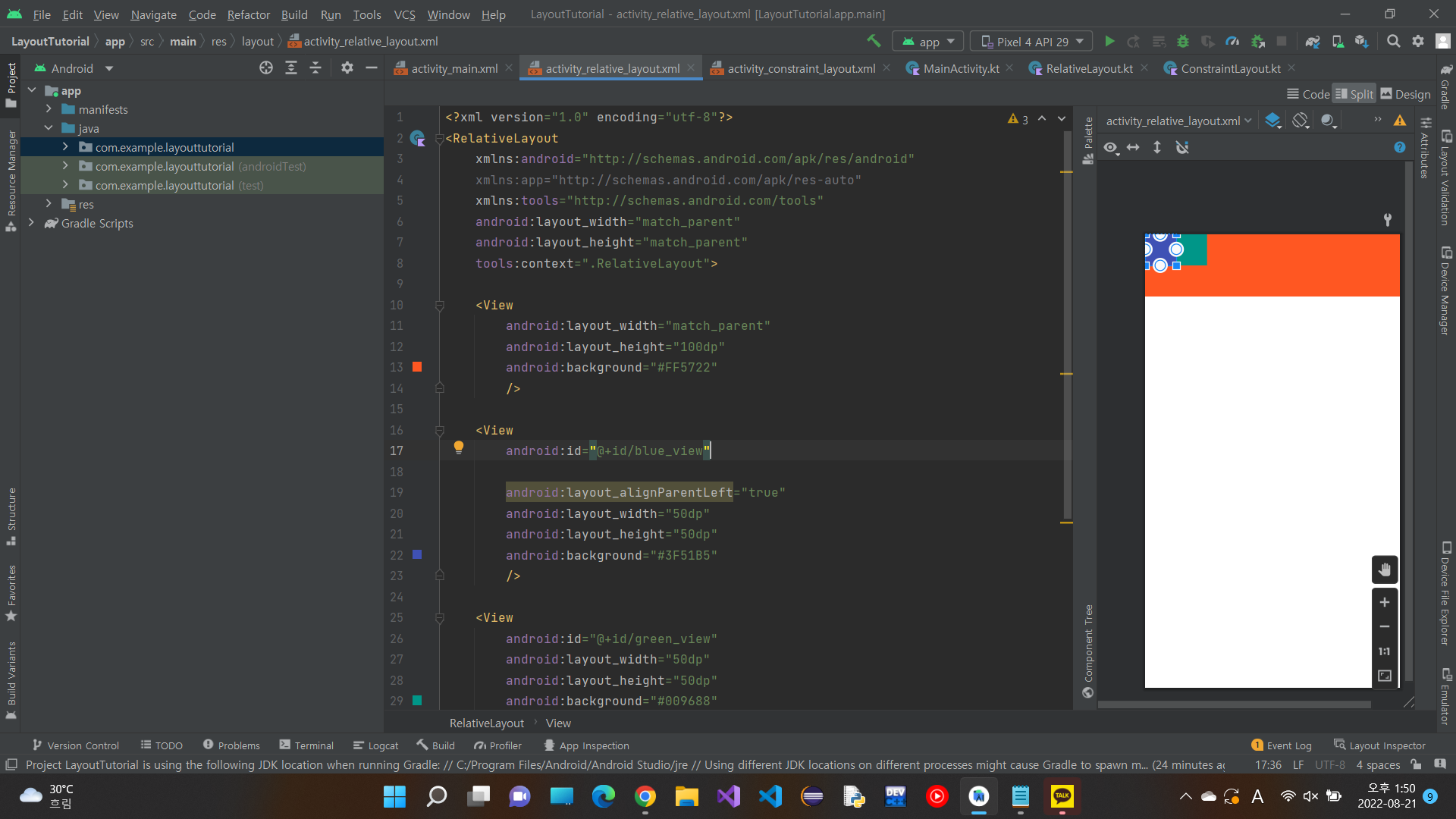
다음은 렐러티브 레이아웃으로 만든 코드인데 우선 빨간색 뷰를 높이 100에 너비는 꽉차게 만들었다. 그리고 작은 파란색 뷰를 만들었는데
android:layout_alignParentLeft="true"
화면의 제일 왼쪽에서 시작하게 관계를 정했고 다음으로 만든 초록색 뷰를
android:layout_toRightOf="@id/blue_view"파란색 블럭에 오른쪽에 배치하도록 관계를 설정하였다.
그런데 보이는 것과 같이 특이한게 빨간색 뷰 위에 파란색뷰와 초록색뷰가 위치하고 있는데 이를 통해 뷰끼리 겹치는 것이 가능하다는 것을 알 수 있다. 먼저 정의한 뷰가 바탕이 되고 다음으로 정의한 뷰가 그 겉에 위치할 수 있다.
컨스트레인트레이아웃 xml
<?xml version="1.0" encoding="utf-8"?>
<androidx.constraintlayout.widget.ConstraintLayout xmlns:android="http://schemas.android.com/apk/res/android"
    xmlns:app="http://schemas.android.com/apk/res-auto"
    xmlns:tools="http://schemas.android.com/tools"
    android:layout_width="match_parent"
    android:layout_height="match_parent"
    tools:context=".ConstraintLayout">

    <View
        android:id="@+id/orange_view"
        android:layout_width="50dp"
        android:layout_height="50dp"
        android:background="#FF9800"
        app:layout_constraintEnd_toEndOf="parent"
        app:layout_constraintStart_toStartOf="parent"
        app:layout_constraintTop_toTopOf="parent" />

    <View
        android:id="@+id/blue_view"
        android:layout_width="50dp"
        android:layout_height="50dp"
        android:background="#2196F3"
        app:layout_constraintStart_toStartOf="parent"
        app:layout_constraintEnd_toEndOf="parent"

        app:layout_constraintTop_toBottomOf="@id/orange_view" />

    <View
        android:layout_width="50dp"
        android:layout_height="50dp"
        android:background="#E91E63"
        app:layout_constraintTop_toBottomOf="@id/blue_view"
        app:layout_constraintStart_toStartOf="parent"
        app:layout_constraintEnd_toEndOf="parent"
        />


</androidx.constraintlayout.widget.ConstraintLayout>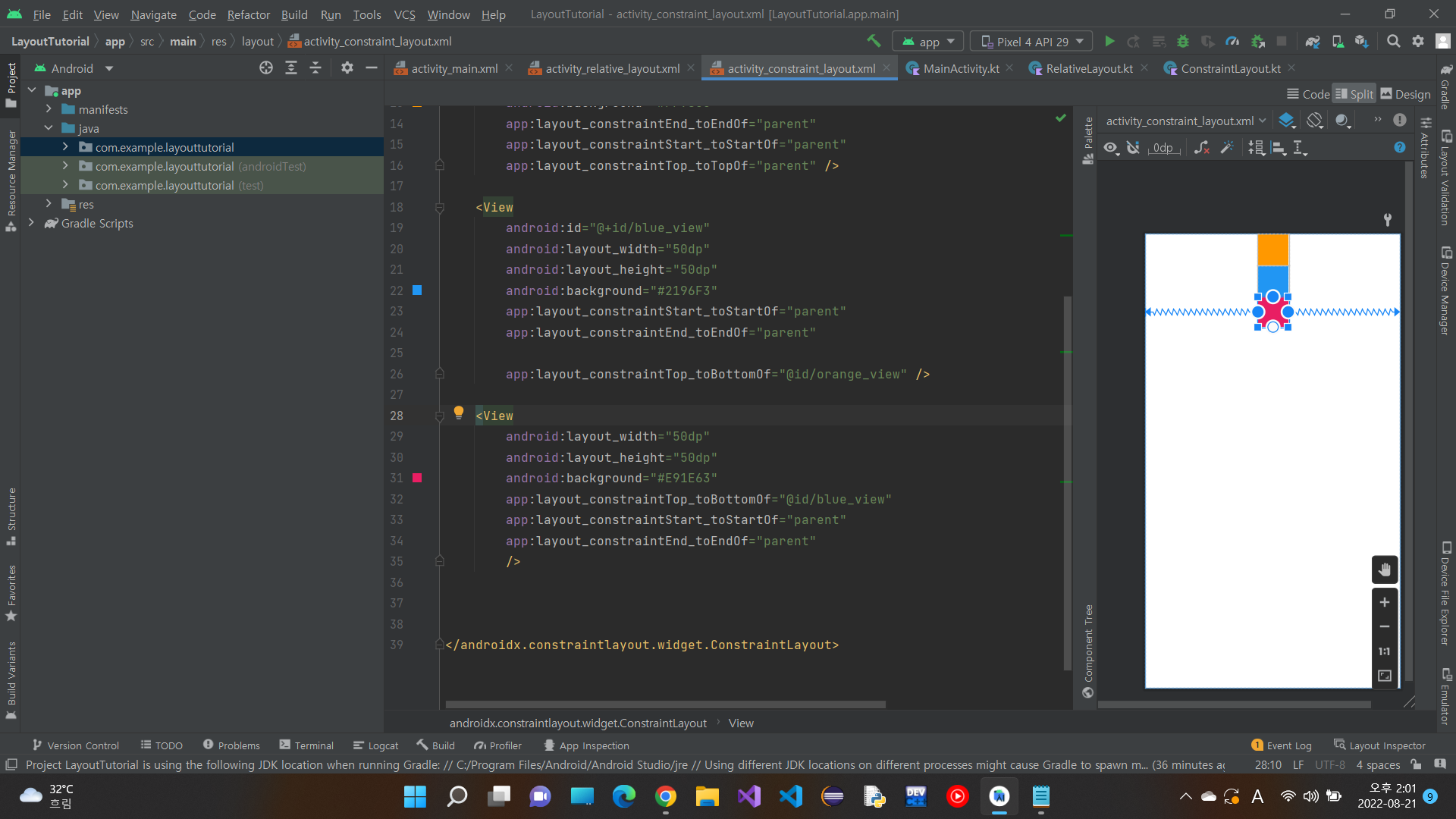
컨스트레인트레이아웃 xml 코드인데 뷰를 보면 각각 3개의 제약이 걸려 있는것을 볼 수 있다. 뷰는 적어도 3개 이상의 제약이 걸려있어야 하고 그렇지 않으면 에러가 나온다. 복잡한 화면을 구성할때 사용하면 유리할 것 같다.
이상으로 3개의 레이아웃에 대해 알아보았다. 어플을 만들때 디자인에 따라 어떤 레이아웃이 화면을 만드는데 유리할까 먼저 생각하고 적절한의 레이아웃을 고르는 능력을 키워봅시다!
'Android' 카테고리의 다른 글
| kotlin: 클릭이벤트 만들기, 리스너 알아보기 (1) | 2022.08.23 |
|---|---|
| kotlin: 레이아웃 실전 (0) | 2022.08.23 |
| kotlin: 생명주기, 그라데이션 뷰 etc (0) | 2022.08.20 |
| kotlin: 기본 튜토리얼 (0) | 2022.08.19 |
| kotlin import 안될 때 (0) | 2022.08.14 |


