| 일 | 월 | 화 | 수 | 목 | 금 | 토 |
|---|---|---|---|---|---|---|
| 1 | 2 | 3 | 4 | 5 | 6 | |
| 7 | 8 | 9 | 10 | 11 | 12 | 13 |
| 14 | 15 | 16 | 17 | 18 | 19 | 20 |
| 21 | 22 | 23 | 24 | 25 | 26 | 27 |
| 28 | 29 | 30 | 31 |
- chown
- chown -R
- App
- chmod
- flutter
- Kotlin
- 컴공
- API
- login_btn
- mac os 권한
- 앱개발
- mac permission denied
- kotlin-android-extensions
- 앱
- 코틀린
- import
- android studio
- 맥북 권한
- HTTP
- dart
- import안됨
- Today
- Total
Milan Dev
kotlin: 기본 튜토리얼 본문
한달 좀 안되는 시간동안 코틀린 공부를 했는데 생각해보니까 따로 정리를 안해놨다..
지금이라도 해보자
우선 가장 기본적으로 헬로우 월드 화면을 만들어 보자
(첫 코딩은 국룰이지..)
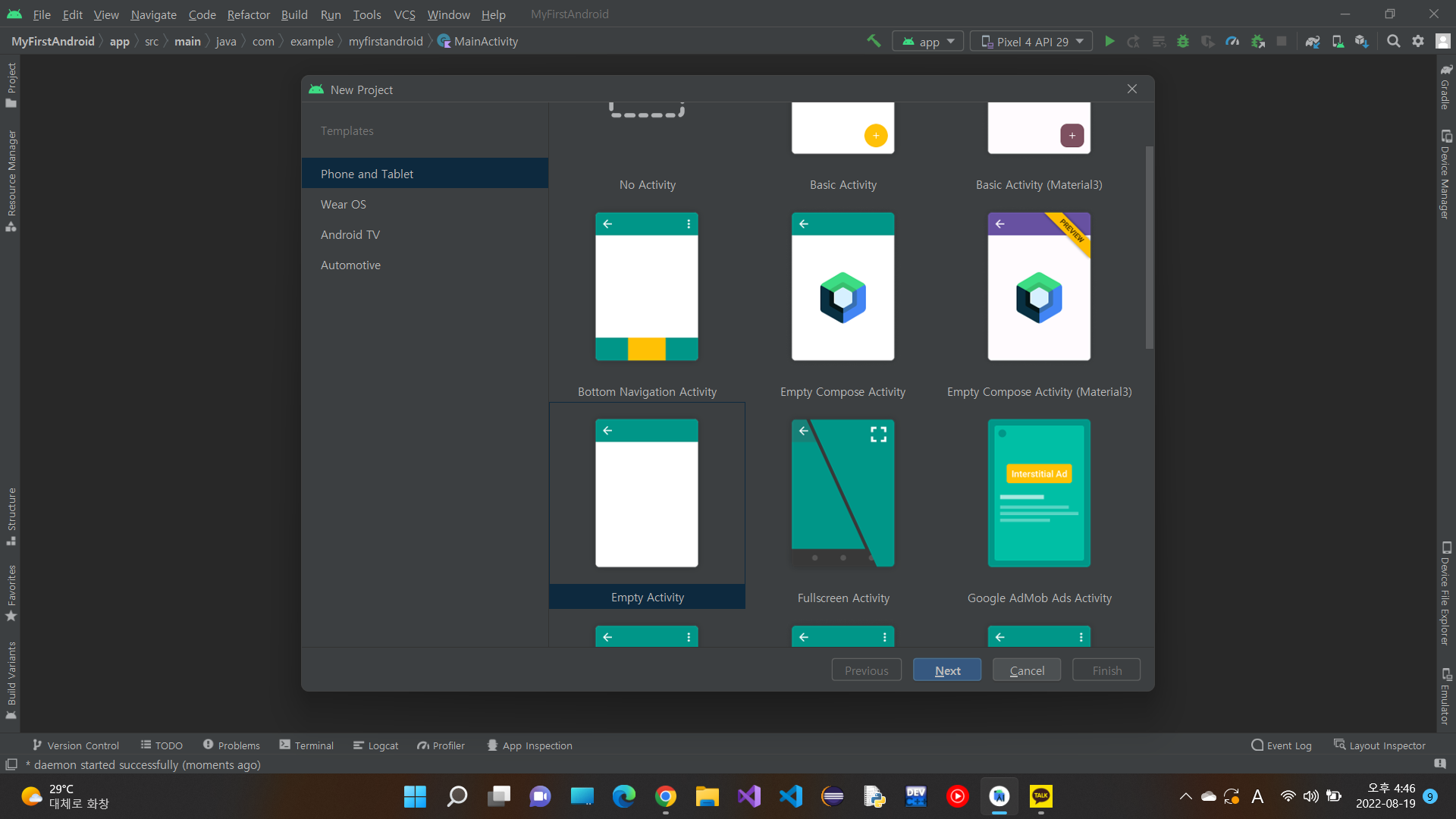
File -> New -> New project 를 하면 저렇게 activity를 선택하는 창이 나온다.
우선 empty activity를 고르고 프로젝트 이름을 정하면 끝! 나는 MyFirstAndroid로 정했다.
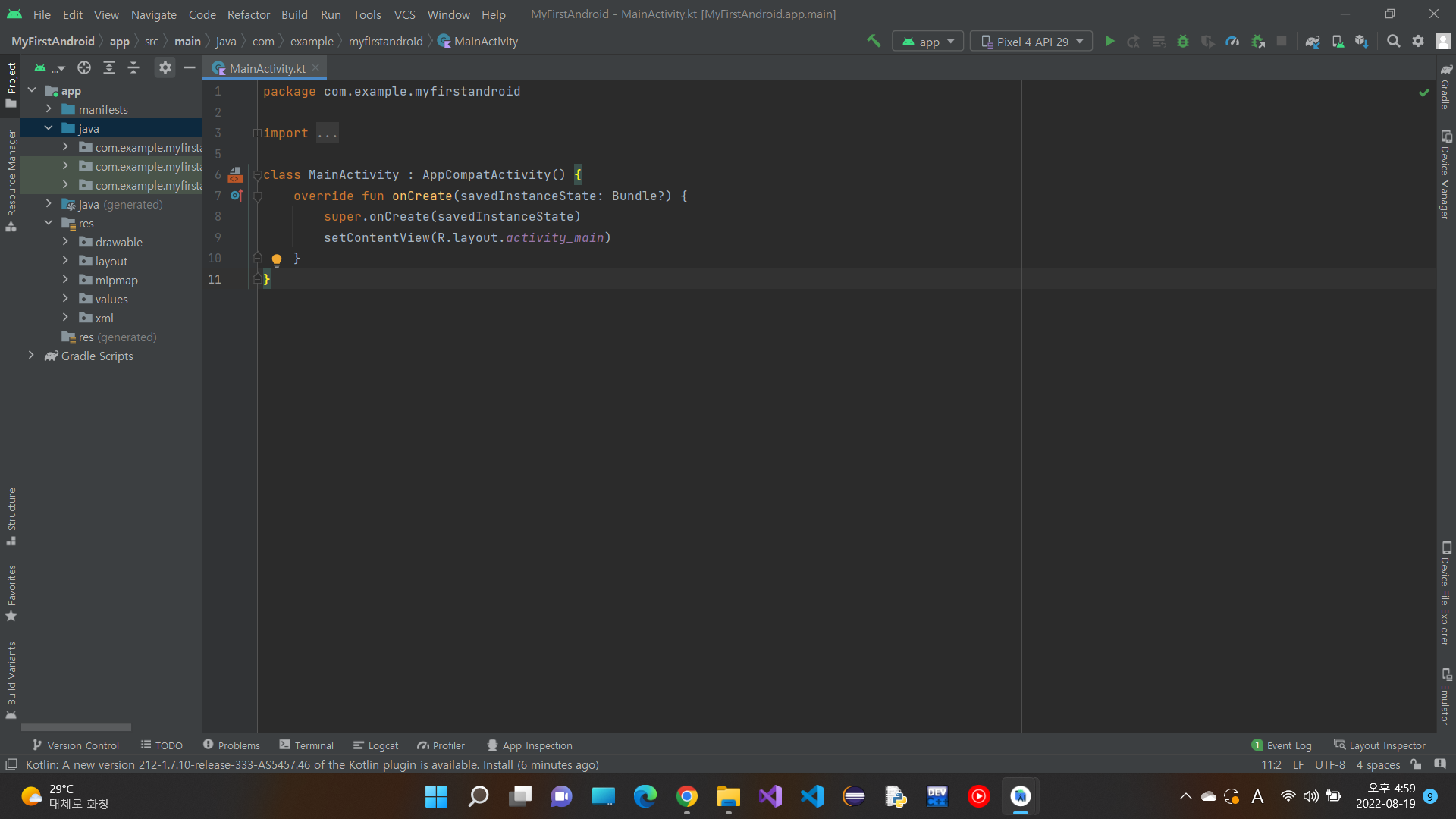
프로젝트를 시작하면 제일먼저 보게 될 화면이다..
MainActivity.kt 그냥 이 어플이 동작하도록 하는 본체라고 생각하자
좌측에 res -> layout -> activity_main.xml로 가보면
activity_main.xml를 볼 수 있다.(우리가 제일 많이 보게 될 친구)
activity_main.xml는 쉽게 말해서 그냥 앱을 키면 보이는 배경화면 버튼 텍스트등 다양한 인터페이스들을 설정하는 곳이다.
웹프로그래밍과 아주 유사하다고 이해하면 편할 것 같다.
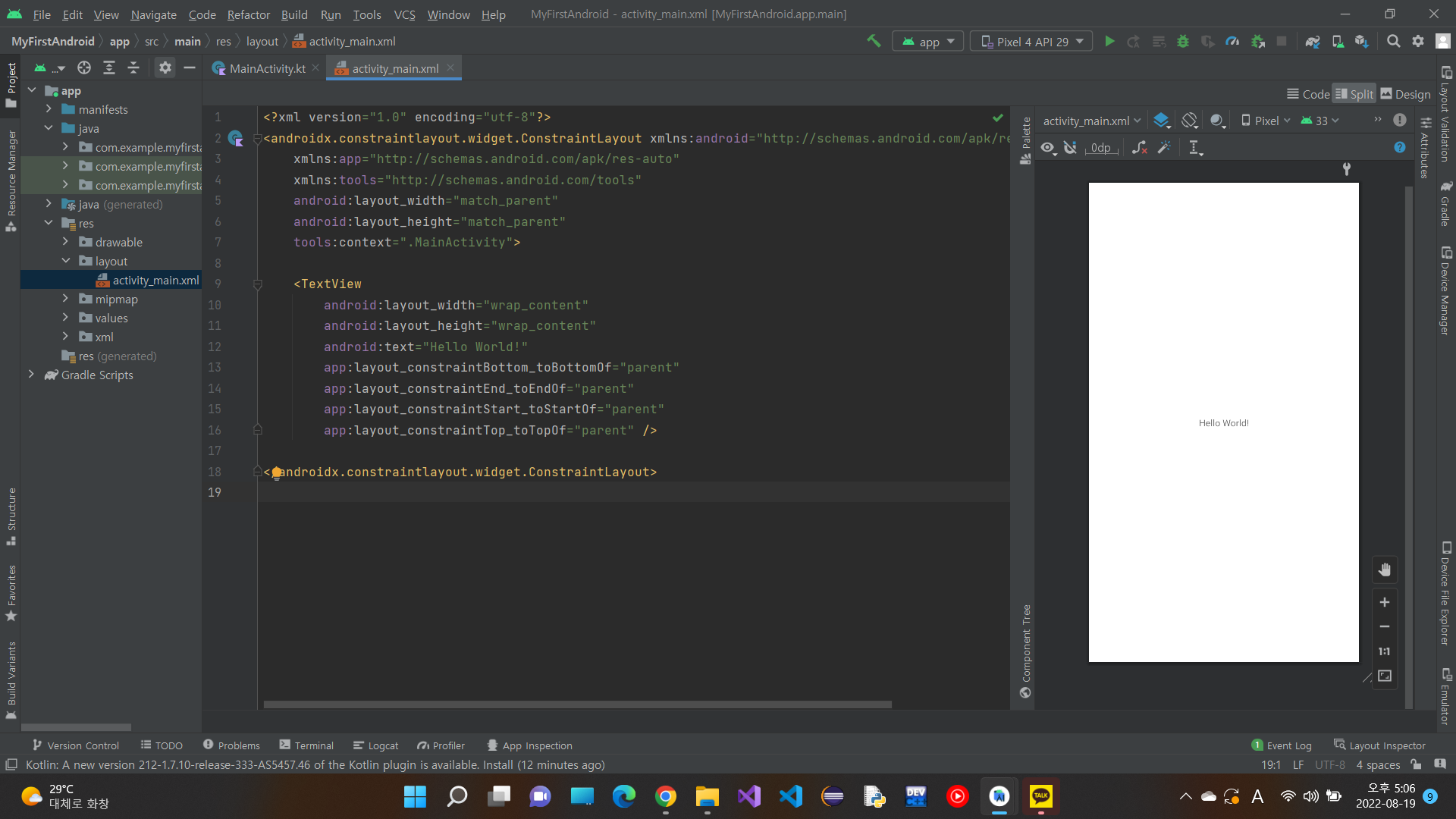
처음 activity_main.xml을 열면 기본적으로 화면을 구성하는 코드가 있고
우측에는 디자인을 확인 할 수 있다.
(우측 상단쯤에 code, split, design 을 통해 원하는데로 볼 수 있다.)
우리는 empty activity를 골랐으니 특별한 기능은 없고 그냥 기본 화면에 Hello world! 만 쓰여져 있다.
쨔쟌 앱만들기 끝!......은 아니고 한번 activity_main.xml을 조금 바꿔보자
우선 코드를 감싸고 있는 <>안에 쓰여진 ConstrainLayout을 보자 지금 우린 ConstrainLayout이 아닌 RelativeLayout을
사용할 것이다. (Layout종류는 나중에 배워보도록 하자..)
<?xml version="1.0" encoding="utf-8"?>
<RelativeLayout
    xmlns:android="http://schemas.android.com/apk/res/android"
    xmlns:app="http://schemas.android.com/apk/res-auto"
    xmlns:tools="http://schemas.android.com/tools"
    android:layout_width="match_parent"
    android:layout_height="match_parent"
    tools:context=".MainActivity"
    android:background="#03A9F4">

    <TextView
        android:textColor="#fff"
        android:layout_centerInParent="true"
        android:textSize="50dp"
        android:layout_width="wrap_content"
        android:layout_height="wrap_content"
        android:text="헬로우 월드!"
        app:layout_constraintBottom_toBottomOf="parent"
        app:layout_constraintEnd_toEndOf="parent"
        app:layout_constraintStart_toStartOf="parent"
        app:layout_constraintTop_toTopOf="parent" />

</RelativeLayout>
일단 내가 써본 코든데 다른건 안 건드리고
백그라운드 색, 텍스트 색, 택스트 크기를 바꾸고 텍스트를 한글로 바꿨다. 이렇게 코드를 짜 넣으면
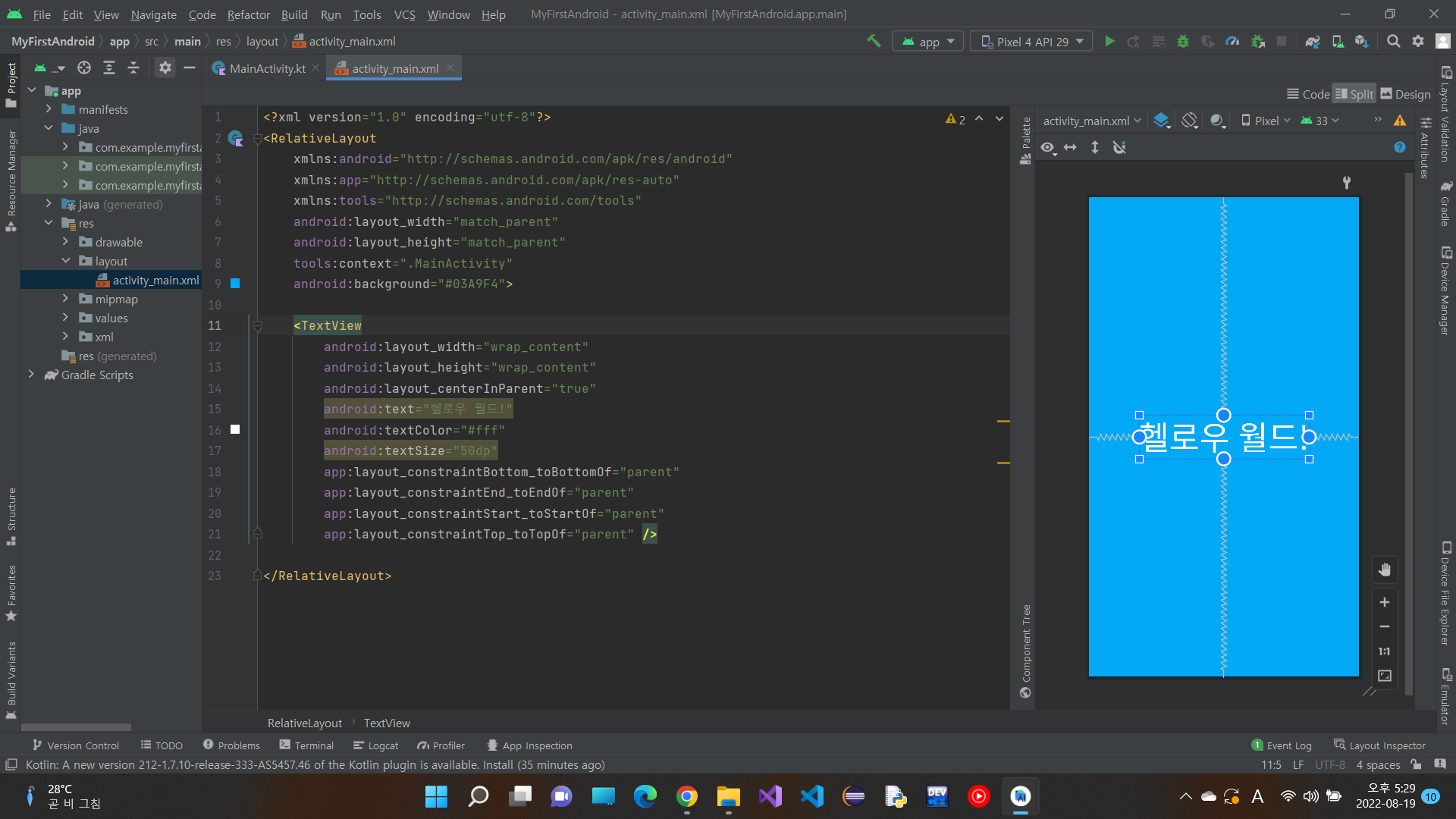
다음과 같이 변했다.
CSS와 굉장히 유사하다..
이렇게 만든 앱을 실행해보자!
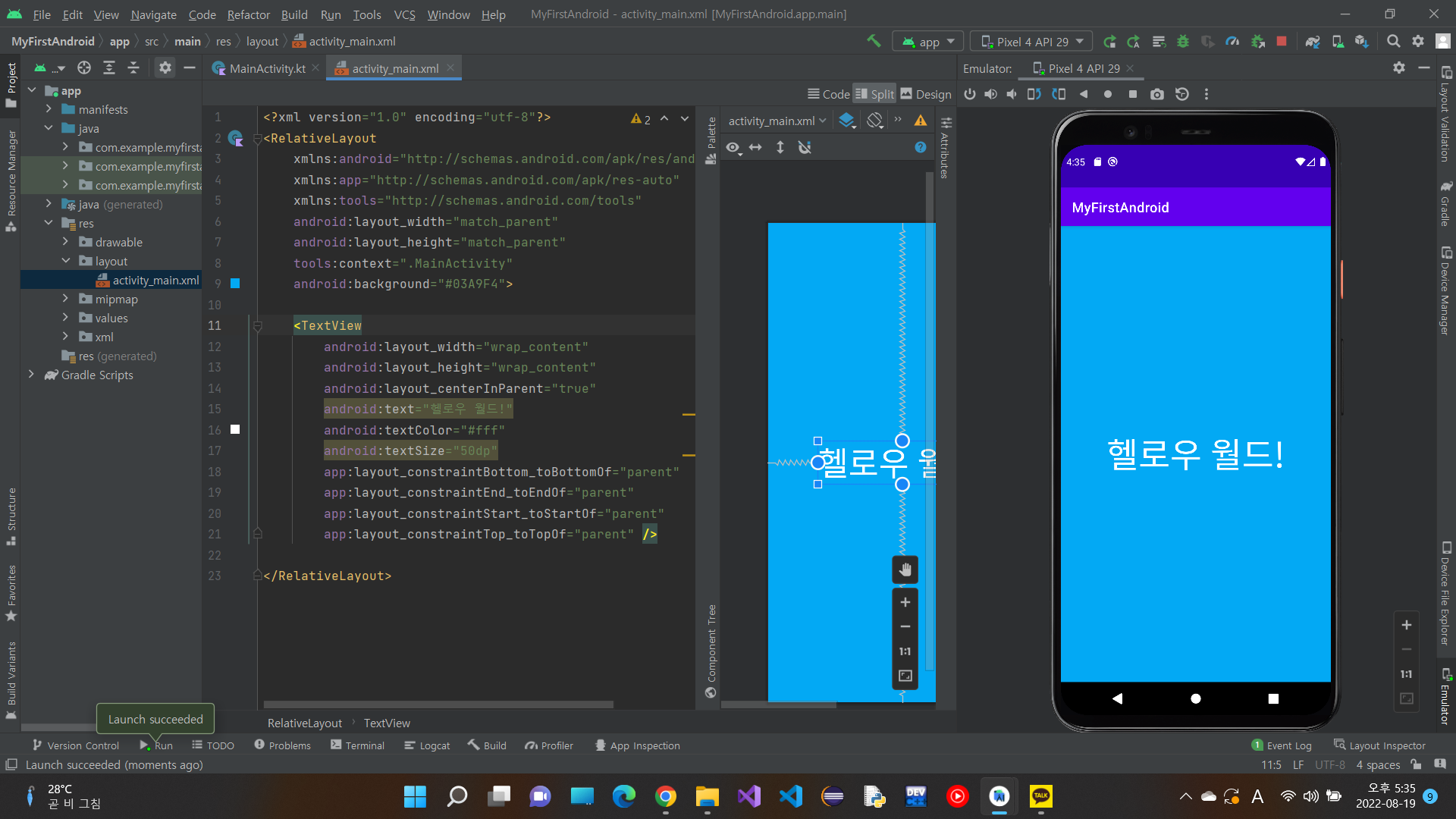
보다시피 vm을 이용해 앱이 구동하는 것을 볼 수 있다. (vm 설정은 알아서 찾아보시길...)
'Android' 카테고리의 다른 글
| kotlin: 레이아웃 실전 (0) | 2022.08.23 |
|---|---|
| kotlin: 레이아웃(layout) (0) | 2022.08.21 |
| kotlin: 생명주기, 그라데이션 뷰 etc (0) | 2022.08.20 |
| kotlin import 안될 때 (0) | 2022.08.14 |
| kotlin 시작전...(Android Studio) (0) | 2022.07.30 |


