Notice
Recent Posts
Recent Comments
Link
| 일 | 월 | 화 | 수 | 목 | 금 | 토 |
|---|---|---|---|---|---|---|
| 1 | 2 | 3 | 4 | 5 | 6 | |
| 7 | 8 | 9 | 10 | 11 | 12 | 13 |
| 14 | 15 | 16 | 17 | 18 | 19 | 20 |
| 21 | 22 | 23 | 24 | 25 | 26 | 27 |
| 28 | 29 | 30 | 31 |
Tags
- dart
- 코틀린
- chown
- App
- 앱개발
- 맥북 권한
- import안됨
- mac os 권한
- mac permission denied
- kotlin-android-extensions
- import
- flutter
- login_btn
- 컴공
- android studio
- chown -R
- chmod
- HTTP
- 앱
- Kotlin
- API
Archives
- Today
- Total
Milan Dev
#Flutter. EPL 일정 앱 개인 프로젝트 ep.2 선택된 팀 화면 구현중 본문
이제 팀 아이콘을 누르면 선택된 팀의 경기 일정을 볼 수 있도록 기능을 구현했습니다.
먼저 팀 앰블럼을 누르면 해당 팀에 대한 정보를 API통신으로 받아와야합니다. 그러기 위해선 team id에 대한 값이 필요하죠. 그래서 HomeScreen 에서 TeamScreen으로 넘어갈때 teamId값도 같이 넘겨주었습니다. 그리고 TeamScreen 에서 경기 정보를 얻을 수 있는 API를 요청합니다.
static Future<TeamMatchInfoModel> getMatchInfo(int teamId) async {
    final url = Uri.parse('$baseUrl/$matchInfoA/$teamId/$matchInfoB');
    final response = await http.get(
      url,
      headers: {'X-Auth-Token': '발급받은 토큰'},
    );
    if (response.statusCode == 200) {
      var jsonResponse = jsonDecode(response.body);
      print("parsing successes22222");
      print(teamId);
      return TeamMatchInfoModel.fromJson(jsonResponse);
    }
    print("$baseUrl/$matchSample");
    print(response.statusCode);
    throw Error();
  }
이렇게 하면 이번시즌 선택한 팀의 38라운드(EPL에서 한 팀이 한 시즌에 치루는 경기 수) 까지의 경기 정보를 얻을 수 있습니다. 이 경기 정보엔 홈팀, 어웨이팀에 대한 정보와 경기 일정이 있습니다.
우선 화면에 어떤 경기이 있는지 랜더링 할 수 있도록 위젯을 만들어 주었습니다.
import 'package:flutter/material.dart';
import 'package:flutter_svg/flutter_svg.dart';
import 'package:myfootball/models/team_match_info_model.dart';

class MatchInfo extends StatelessWidget {
  const MatchInfo({
    super.key,
    required this.matches,
  });

  final Matches matches;

  @override
  Widget build(BuildContext context) {
    String homeTeamName = matches.homeTeam.shortName;
    String awayTeamName = matches.awayTeam.shortName;
    String homeTeamEmblem = matches.homeTeam.crest;
    String awayTeamEmblem = matches.awayTeam.crest;

    return GestureDetector(
      child: Container(
        height: 60,
        margin: EdgeInsets.only(bottom: 10),
        decoration: BoxDecoration(
            boxShadow: [
              BoxShadow(
                blurRadius: 5,
                offset: Offset(5, 5),
                color: Colors.black.withOpacity(0.2),
              ),
            ],
            border: Border.all(
              color: Colors.blue.shade400,
            ),
            borderRadius: BorderRadius.circular(20),
            color: Colors.white),
        child: Padding(
            padding: const EdgeInsets.symmetric(
              vertical: 10,
              horizontal: 20,
            ),
            child: Column(
              children: [
                Row(
                  mainAxisAlignment: MainAxisAlignment.spaceBetween,
                  children: [
                    Row(
                      children: [
                        Container(
                          height: 30,
                          width: 30,
                          child: homeTeamEmblem.endsWith('.svg')
                              ? SvgPicture.network(
                                  homeTeamEmblem,
                                  fit: BoxFit.cover,
                                )
                              : Image.network(
                                  homeTeamEmblem,
                                  fit: BoxFit.cover,
                                ),
                        ),
                        SizedBox(width: 8), //간격을 주기 위한 SizedBox
                        Text(
                          homeTeamName,
                          style: TextStyle(
                            color: Colors.blue.shade400,
                            fontSize: 12,
                          ),
                        ),
                      ],
                    ),
                    Row(
                      children: [
                        Text(
                          awayTeamName,
                          style: TextStyle(
                            color: Colors.blue.shade400,
                            fontSize: 12,
                          ),
                        ),
                        SizedBox(width: 8), //간격을 주기 위한 SizedBox
                        Container(
                          height: 30,
                          width: 30,
                          child: awayTeamEmblem.endsWith('.svg')
                              ? SvgPicture.network(
                                  awayTeamEmblem,
                                  fit: BoxFit.cover,
                                )
                              : Image.network(
                                  awayTeamEmblem,
                                  fit: BoxFit.cover,
                                ),
                        ),
                      ],
                    ),
                  ],
                ),
              ],
            )),
      ),
    );
  }
}
또한 만들어진 위젯을 TeamScreen에서 적용할 수 있도록 FutureBuilder를 사용해주었습니다.
FutureBuilder<TeamMatchInfoModel>(
                future: futureTeamMatchInfoModel,
                builder: (context, snapshot) {
                  if (snapshot.connectionState == ConnectionState.waiting) {
                    return CircularProgressIndicator();
                  } else if (snapshot.hasError) {
                    return Text("오류가 발생했습니다.");
                  } else {
                    List<Widget> matchWidgets = [];
                    for (var match in snapshot.data!.matches) {
                      matchWidgets.add(MatchInfo(matches: match));
                    }
                    return Column(
                      children: matchWidgets,
                    );
                  }
                },
              )
이렇게 하면 성공적으로 응답값을 받아왔을때 정상적으로 화면에 경기 일정을 랜더링할 수 있습니다.
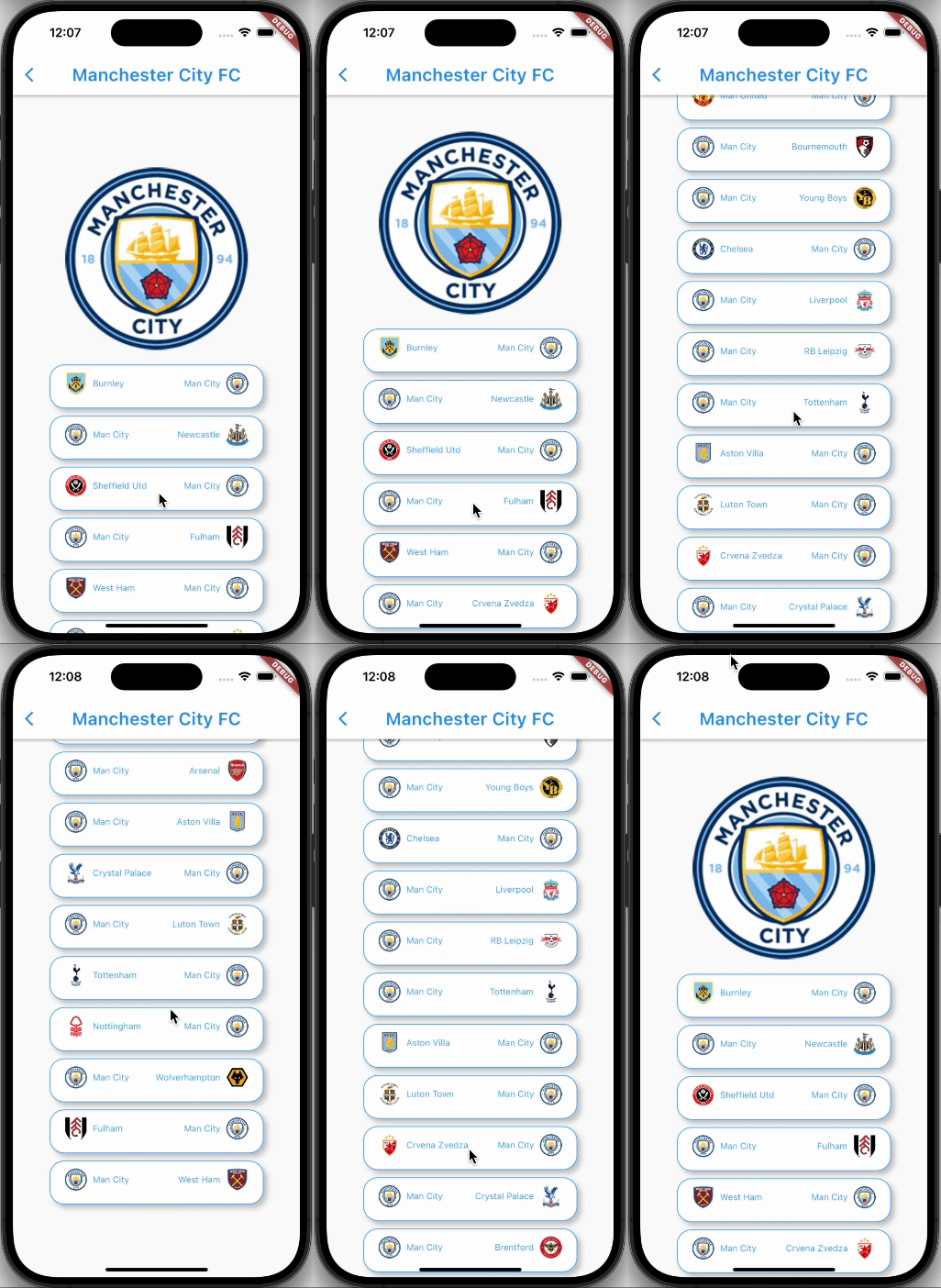
성공적으로 데이터를 랜더링 할 수 있었습니다!
다음 작업은 치뤄진 경기들을 거르고 남아있는 경기들만 랜더링 되게 한 후 위젯에 필요한 요소들을 넣어 화면 구성을 더 정리해 줄 예정입니다.
봐주셔서 감사합니다!
'Flutter' 카테고리의 다른 글
| #Flutter. EPL 일정 앱 개인 프로젝트 ep.3 선택된 팀 화면 구현 (0) | 2024.01.19 |
|---|---|
| #Flutter. SVG(벡터이미지) URL, flutter에서 사용하기. (0) | 2024.01.12 |
| #Flutter. EPL 일정 앱 개인 프로젝트 ep.1 팀 선택화면 만들기 (1) | 2024.01.10 |
| #Flutter. shared preferences (1) | 2023.12.26 |
| #Flutter. Api service: 파라미터를 갖는 메소드 초기화 (0) | 2023.12.25 |
'Flutter' Related Articles
more


